Convert PNG to AVIF
The editor above is set to export AVIF at quality 90. Open a PNG — a screenshot, a design export, a photo someone saved in the wrong format — and it usually comes back at a sixth of the size or less, with any transparency carried over exactly. The encoding runs on your device; the PNG is never uploaded.
AVIF is encoded by libavif, which your browser downloads from this site the first time you pick it (about 840 KB, then cached). Each conversion takes a second or two.
Two kinds of PNG, measured
How much a PNG shrinks depends on what is in it. We converted two through the editor: our sample screenshot of the CropShrink interface (1600 × 922, 1,429 KB), and our sample landscape photograph after saving its pixels as PNG (1920 × 1280, 4,420 KB). WebP at the same slider setting is shown for comparison:
| PNG | Quality | WebP | AVIF | AVIF vs the PNG |
|---|---|---|---|---|
| Screenshot, 1,429 KB | 70 | 124 KB | 103 KB | 92% smaller |
| Screenshot, 1,429 KB | 80 | 162 KB | 131 KB | 90% smaller |
| Screenshot, 1,429 KB | 90 | 247 KB | 213 KB | 85% smaller |
| Photo, 4,420 KB | 70 | 326 KB | 287 KB | 93% smaller |
| Photo, 4,420 KB | 80 | 423 KB | 349 KB | 92% smaller |
| Photo, 4,420 KB | 90 | 649 KB | 494 KB | 88% smaller |
These are far bigger savings than a JPEG ever gives, because nothing has been thrown away yet: PNG keeps every pixel exactly, so the first lossy encoder to touch the file gets all of the easy savings. A photograph stored as PNG is the extreme case — lossless compression barely works on camera noise, so the PNG is enormous, and AVIF cuts it to about a thirteenth at quality 80.
The quality slider is calibrated to look the same in both formats, so each row compares files of about equal quality. AVIF is smaller in all six, by 14% on the screenshot at quality 90.
Screenshots and text
PNG sources are often interface captures and diagrams, and lettering is where a lossy format shows its compromises first. Both lossy WebP and AVIF store colour at half the resolution of brightness, a trick borrowed from video that saves a great deal on photographs. On a hard edge between white text and a saturated background, the colour of the background leaks a pixel into the letters:
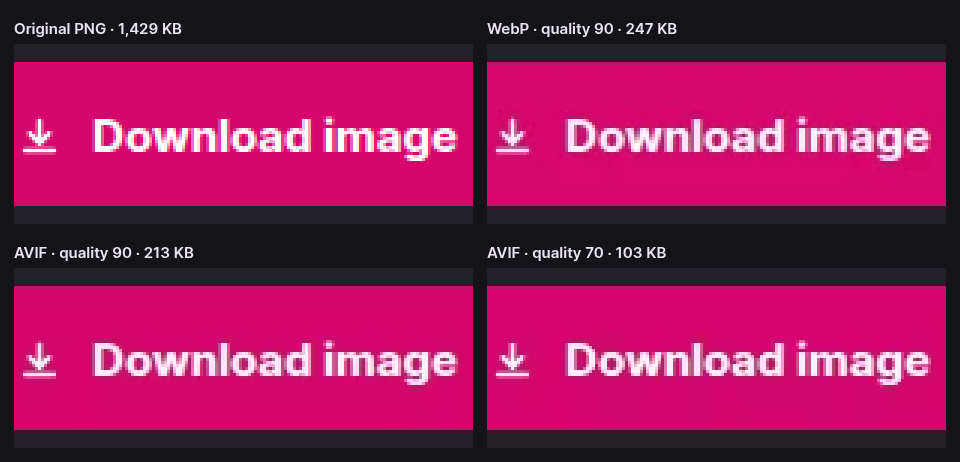
At normal viewing size the tint is invisible and the text reads perfectly well, which is why this page starts at quality 90 rather than 80: it keeps lettering clean with a file still under a sixth of the original. For documentation, slides and web pages, that is the right trade.
It is the wrong trade when the pixels themselves matter — a UI mock-up a developer will measure, a chart with one-pixel gridlines, a QR code. AVIF at quality 100 is not lossless here: the screenshot comes out at 647 KB, much smaller than the PNG but still not identical to it. For exact pixels, keep the PNG, or use lossless WebP at quality 100, which is pixel-perfect and, for a screenshot like ours, smaller than the PNG. The AVIF vs PNG guide compares all three on screenshots, photos and logos.
Transparency, kept exactly
AVIF has a full alpha channel, so cut-out logos, icons, product shots on transparent backgrounds and soft drop shadows all survive the conversion. The encoder is told to store that channel losslessly: the colour is compressed, but the outline of every shape and the fade of every shadow come back exactly as they were in the PNG. We checked by decoding the AVIF and comparing its alpha values to the original, pixel by pixel.
That costs a little size on images that have transparency, and nothing at all on ones that do not. It is also the one place a PNG with large transparent areas can shrink less than you expect: a mostly-empty logo was already small as PNG, and there is not much left to save.
When to convert, and when to leave it as PNG
- Photos saved as PNG: convert at quality 80. This is the biggest win on the page, often over 90%.
- Screenshots for a web page, a help article or a slide: convert at 90. Check the smallest text with the comparison divider before downloading.
- Logos and graphics with transparency, for the web: convert at 90; the transparency comes through untouched.
- Anything that must be pixel-exact, or opened by older software: leave it as PNG. Many desktop viewers, office suites and upload forms still do not accept AVIF, even though every current browser displays it.
If you are shrinking the file for a page, switch on Resize too. A 2560-pixel screenshot shown 1280 pixels wide is carrying four times the pixels it needs, and removing them saves more than any format change.
Questions about converting PNG to AVIF
Does AVIF support transparency?
Yes, with a full alpha channel, like PNG. CropShrink stores it losslessly, so transparent areas, anti-aliased edges and soft shadows come out exactly as they were in the PNG.
Is converting PNG to AVIF lossless?
No. AVIF as exported here is always lossy for colour, even at quality 100. At quality 90 our sample screenshot went from 1,429 KB to 213 KB with text that still reads cleanly. If you need every pixel exact, keep the PNG or use lossless WebP.
Is AVIF better than WebP for PNG files?
For lossy conversion, yes: at quality 90 it was 14% smaller on our screenshot and 24% smaller on a photo saved as PNG. For lossless conversion, WebP is the only choice here, because AVIF is always lossy in this editor.
Is my PNG uploaded to convert it?
No. The encoder is downloaded to your browser and runs there, and the image never leaves your device. The privacy policy shows how to confirm that in your browser’s network panel.
More image tools
Every one of these is the same editor, opened for a different job — and all of them run on your device.
- PNG to WebPConvert and keep transparency, losslessly if you need to.
- JPG to AVIFRoughly halve a photo, converted on your device.
- Compress an imageShrink a photo for the web, an email or an upload form.
- Resize an imageChange the pixel dimensions with Lanczos3, Catmull-Rom or Mitchell.
- AVIF vs PNGScreenshots, photos and logos, measured, and when to use which.
Or start from the full editor, which does all of it at once.