Resize images online with a real resampling filter
The editor above is already in resize mode: the Resize switch is on and Lanczos3 is selected. Open an image, type a width, keep the aspect ratio locked, and the height follows. Most online resizers hand the job to the browser’s default smoothing; this one gives you the filter as a choice.
Resize to an exact size
These are the sizes people ask for most. Each link opens the editor with that size filled in — open your image and it is resized to fit. When the size you pick is a different shape from your photo, say a square from a landscape shot, the crop tool opens first at the right ratio, so you choose what to keep instead of the picture being stretched.
| What it is for | Pixels | Ratio |
|---|---|---|
| Full HD screen, desktop wallpaper, video frame | 1920 × 1080 | 16:9 |
| 4K wallpaper | 3840 × 2160 | 16:9 |
| HD slide, 720p video frame (YouTube thumbnails are now 3840 × 2160) | 1280 × 720 | 16:9 |
| Instagram square post (square page) | 1080 × 1080 | 1:1 |
| Instagram portrait post | 1080 × 1350 | 4:5 |
| Story, Reel or TikTok | 1080 × 1920 | 9:16 |
| Link preview (Open Graph) | 1200 × 630 | 1.91:1 |
| X (Twitter) header | 1500 × 500 | 3:1 |
| Profile picture, form minimum | 600 × 600 | 1:1 |
| Product photo, square | 800 × 800 | 1:1 |
For any other size, type the width and height into the Resize panel yourself. The common image sizes table on the homepage covers a few more platform formats.
Three different things called “size”
Most confusion about resizing comes from conflating three separate measurements:
- Pixel dimensions — 1920 × 1080. This is what the image actually contains, and the only one CropShrink changes.
- File size — 480 KB. How many bytes the encoded file takes. Related to pixel dimensions, but also to format and quality. If this is what you need to change, compress the image instead.
- Physical size — 15 × 10 cm at 300 DPI. Only meaningful in print, and calculated from the pixel dimensions, as the next section shows.
When a form asks for “a 2 MB photo, minimum 600 × 600”, it is asking about two of these at once, and they are adjusted separately.
Resizing for print: inches, centimetres and DPI
CropShrink works in pixels, and so does every printer in the end. DPI (dots per inch) is only the link between pixels and paper, and the arithmetic is one line:
- From inches: pixels = inches × DPI. A 6-inch side at 300 DPI is 1800 px.
- From centimetres: pixels = centimetres ÷ 2.54 × DPI. A 15 cm side at 300 DPI is 1772 px.
300 DPI is the standard for photo prints viewed in the hand. 150 DPI is fine for posters and anything seen from across a room. The sizes below are portrait; swap the two numbers for landscape. The 300 DPI sizes open the editor at that size.
| Print size | 300 DPI (photo) | 150 DPI (poster) |
|---|---|---|
| 4 × 6 in | 1200 × 1800 | 600 × 900 |
| 5 × 7 in | 1500 × 2100 | 750 × 1050 |
| 8 × 10 in | 2400 × 3000 | 1200 × 1500 |
| 10 × 15 cm | 1181 × 1772 | 591 × 886 |
| 13 × 18 cm | 1535 × 2126 | 768 × 1063 |
| A5 (148 × 210 mm) | 1748 × 2480 | 874 × 1240 |
| A4 (210 × 297 mm) | 2480 × 3508 | 1240 × 1754 |
One thing CropShrink does not do is let you choose the DPI number written into the file. That number is only a note to the printer and changes none of the pixels: an 1800 × 1200 px image makes a sharp 6 × 4 inch print whatever its header says, and print services size from the pixel count. If your photo has fewer pixels than the table asks for, it will print softer — enlarging it here will not add the missing detail.
Resizing by percentage
Pixels are the right unit when something downstream sets the size. When nothing does — you just want a phone photo small enough to email — a percentage is quicker. The Scale menu offers 75, 50 and 25 percent of the current size; for any other percentage, multiply the width yourself and type it in: 40 percent of a 4000 px photo is 1600 px.
Percentages mislead in one way. Scaling to 50 percent halves the width and the height, which leaves a quarter of the pixels, not half. A 12-megapixel phone photo at 50 percent is 3 megapixels, still plenty for a screen, and the file usually shrinks to around a quarter too. At 25 percent you are down to a sixteenth of the pixels, which suits a thumbnail and little else.
Why the resampling filter matters
Shrinking an image to half its width means three quarters of the original pixels will not exist in the output. Something has to decide what the surviving pixels should be, and the choices differ more than most people expect. The resampling guide goes into the full detail, with all four filters compared on one photograph and the kernels plotted from the code; this is the short version.
The naive approach picks the nearest original pixel and discards the rest, which produces aliasing — jagged diagonals and shimmering detail. Better filters average a neighbourhood, weighting each contributing pixel by a kernel. The kernel’s width and shape is what separates the options:
| Method | Kernel | Character | Best for |
|---|---|---|---|
| Lanczos3 | Windowed sinc, radius 3 | Sharpest; slight ringing possible | Photographs, the default |
| Catmull-Rom | Cubic, radius 2 | Crisp with less ringing | Mixed content, screenshots |
| Mitchell | Cubic, radius 2, softer | Smoothest; hides noise | Grainy or high-ISO images |
| Browser | Built-in smoothing | Fast, noticeably softer | Very large images in a hurry |
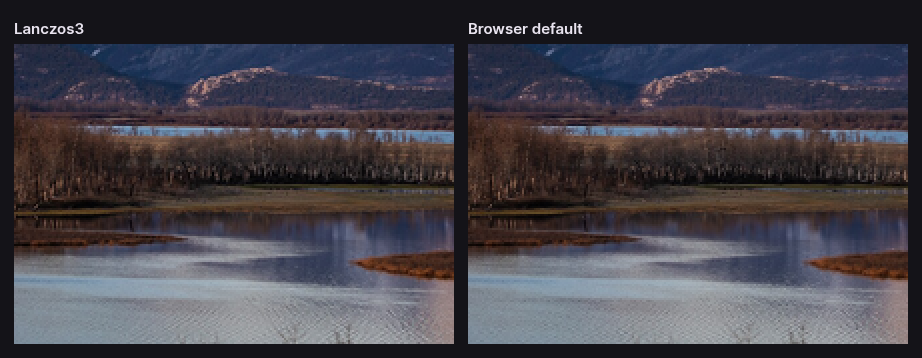
Ringing is the faint light or dark halo that can appear alongside a very high-contrast edge — a black branch against a bright sky is the classic case. It is the price Lanczos3 pays for its sharpness. If you see it, Catmull-Rom usually keeps most of the sharpness without it.
Two implementation details matter for correctness rather than taste. CropShrink premultiplies colour by alpha before filtering, so semi-transparent edges do not pick up dark fringes from the transparent pixels beside them. And when shrinking, the kernel widens by the scale factor, so a large reduction samples the whole region it is averaging instead of skipping across it. Both run in a Web Worker, which is why the interface stays responsive on a large image.
Shrinking and enlarging are not the same problem
Shrinking throws information away, and a good filter decides gracefully what to discard. Enlarging has the opposite problem: the extra pixels have to be invented, and no interpolation filter can recover detail the camera never recorded.
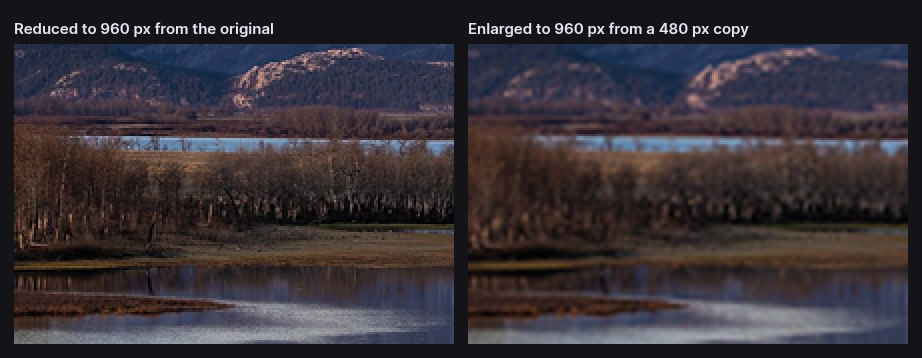
So if a resized image looks soft, check the direction first. Upscaling is the usual culprit, and the honest fix is a larger original rather than a different setting. Where an enlargement is unavoidable, Lanczos3 keeps the most apparent sharpness.
Choosing a width for the web
Pick the width the image will actually be displayed at, then decide whether to double it. A photo shown in a 700-pixel-wide article column needs 700 px on an ordinary display and 1400 px to stay crisp on a high-density phone or laptop screen. Serving 4000 px to either is simply wasted bandwidth.
Useful defaults: 1200 px for a blog body image, 1920 px for a full-width hero, 2400 px if it will be viewed full-screen on a large monitor. Anything above that is for printing or archiving, not for a web page.
Aspect ratio arithmetic is handled for you while Maintain aspect ratio is on — type either dimension and the other follows. Turn it off only when you genuinely want to distort the image, which is rare; if you need a different shape, crop to the ratio first and then resize.
Questions about resizing
Will resizing an image lose quality?
Shrinking always discards pixels, but a good filter makes the smaller image look sharp at its new size — that is what Lanczos3 is for. Quality is lost for real in two other places: enlarging, which cannot add detail, and re-encoding. If you will edit the result again, export PNG or WebP at quality 100 so each save does not compound the loss.
How do I resize an image without stretching it?
Leave Maintain aspect ratio on and type one dimension; the other follows. If you need a different shape, crop to it first. The size links on this page do that step for you: when the size you pick has a different shape from your photo, the crop tool opens at the right ratio before anything is resized.
What is the best size for a website image?
The width it is displayed at, doubled for high-density screens. For a typical article column that means about 1200 px; for a full-width banner, 1920 px. Larger files only cost your visitors bandwidth, and the browser shrinks them anyway.
Can I make an image bigger without it going blurry?
Not by much. Any enlargement has to invent the new pixels, so fine detail turns soft; up to about 1.5× usually passes, 2× is visibly softer, as the comparison above shows. Lanczos3 keeps edges the sharpest. AI upscalers invent plausible detail instead, which can look good but is not what the camera recorded; CropShrink does not do that.
How do I resize an image to an exact file size, like 100 KB?
File size and pixel size are separate settings. Resize to the dimensions you need here, then switch on Compress to a maximum file size in the Compress panel, or use the 100 KB compressor, which opens with it already on. If even the lowest quality is too big, reduce the width and try again.
How do I resize an image for printing at 300 DPI?
Multiply the print size in inches by 300 to get the pixels, or divide centimetres by 2.54 first. A 6 × 4 inch print needs 1800 × 1200 px. The print sizes table above has the common ones worked out, each opening the editor at that size.
More image tools
Every one of these is the same editor, opened for a different job — and all of them run on your device.
- Compress an imageShrink a photo for the web, an email or an upload form.
- Compress to 100 KBHit a hard upload limit without guessing at the quality slider.
- Crop an imageTrim to what matters, freeform or to a fixed ratio.
- PNG to WebPSame picture, same transparency, a fraction of the bytes.
- Remove EXIF dataStrip the GPS location, camera and serial number from a photo.
Or start from the full editor, which does all of it at once.